Registering a Recipient Account for the Web Portal Web Page
Overview - The Register Recipient Account function allows a recipient to register as a user of the Web Portal. Once registered, the recipient will have access to secure functions of the Web Portal, such as: using the message center and accessing survey and seminar information.
Registering a Recipient Account for the Web Portal: Web Page Image
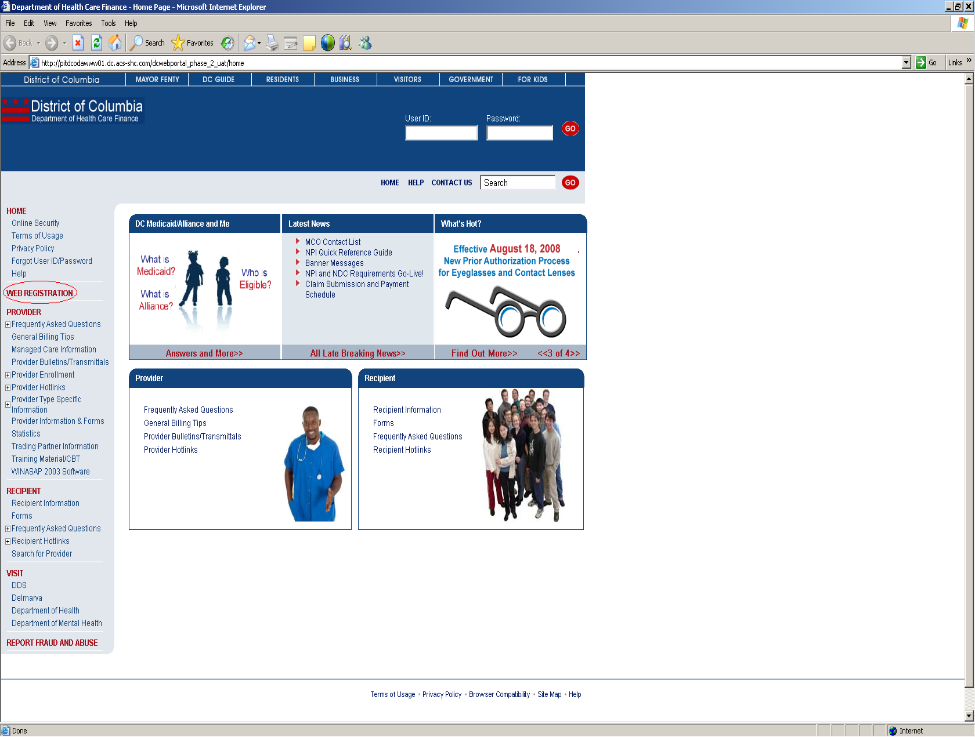
Figure 63: Home Page – Web Registration
Registering a Recipient Account for the Web Portal: Web Page Details
- On the left side of the Home Pagein the navigation bar, the recipient should click Web Registration.
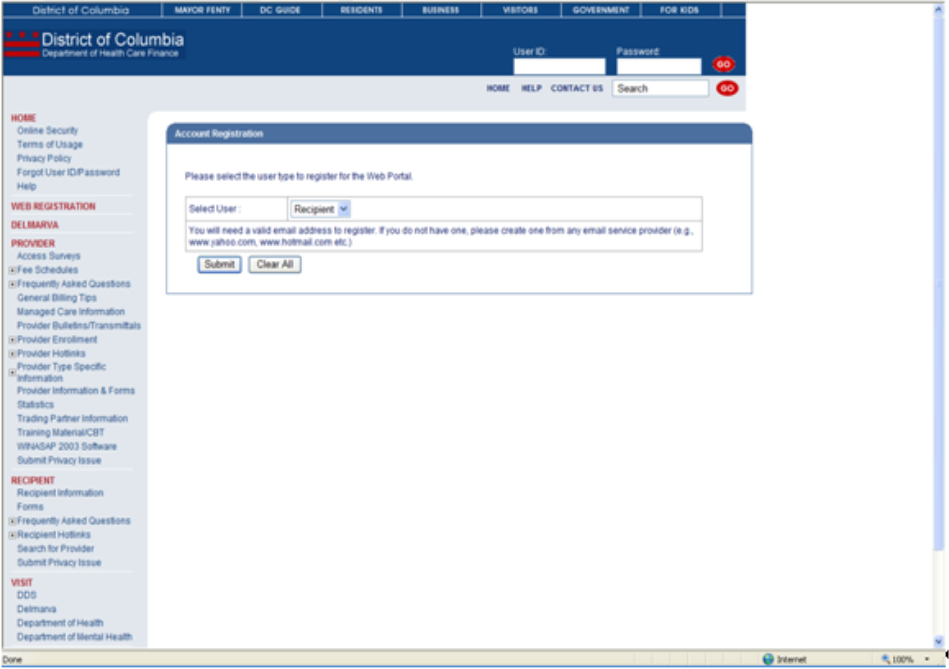
- The Account Registration web page will be displayed.
- The recipient should select Recipient from the drop-down box and click Submit. On the registration form, the recipient should begin at the top of the registration form and complete all required information.
Figure 64: Recipient Account Registration
- If the recipient has completed a portion of the form and wishes to begin anew, then he/she should click Clear All located at the bottom of the web page to clear all fields on the registration form.
- All of the fields listed below are required in order to successfully register for the Web Portal. If there are any errors with the information supplied in a field, then a message will be displayed near that field. For example, should a recipient submit a non-numeric Medicaid ID, the error message, Medicaid ID should be numeric, will be displayed in red next to the Medicaid ID field.
- Logon ID – must not already be used by another recipient
- Medicaid ID
- Last Name
- First Name
- SSN (last 4 digits)
- Date of Birth
- E-mail Address
- E-mail Address Verification
- Hint Question
- Hint Answer
Figure 65: Recipient Account Registration
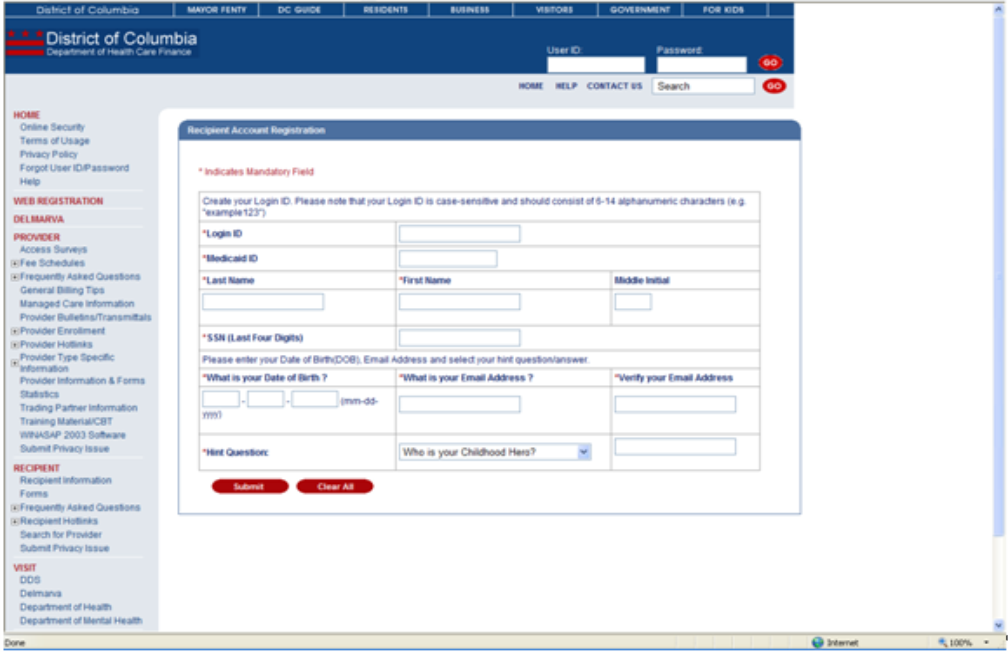
- Once the recipient has completed all required fields of the registration form, then he/she should click Submit located at the bottom of the web page. If the recipient has supplied information that cannot be validated against the information on file, then an error message will be displayed in red at the top of the web page. For instance, should the last four digits of a recipient’s SSN not match the SSN on file for that recipient, then the error message, "SSN not eligible for registration", will be displayed at the top of the web page. Successful registrations will display the message, "Recipient Registered Successfully", at the top of the web page.
- The recipient should check the e-mail address that he/she supplied in the web registration in order to obtain the temporary password.